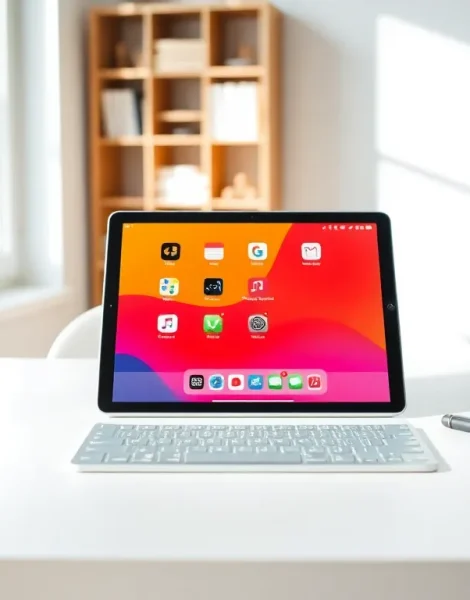
Learning how to use tablets doesn’t need to feel overwhelming. These versatile devices have become essential tools for work, entertainment, and staying connected. Whether someone just unwrapped a new iPad, Android tablet, or Fire tablet, the basics remain surprisingly similar across all platforms.
This guide breaks down everything a new tablet owner needs to know. From the initial setup to downloading apps and customizing settings, each step builds confidence with the device. By the end, readers will feel comfortable using their tablet for everyday tasks, and maybe discover a few tricks they didn’t expect.
Table of Contents
ToggleKey Takeaways
- Learning how to use tablets starts with a simple setup wizard that covers Wi-Fi, account sign-in, and basic preferences in about 10-15 minutes.
- Set up screen lock security immediately using biometrics like fingerprint or Face ID for the best balance of protection and convenience.
- Master essential touch gestures—tap, swipe, pinch, and long press—to navigate your tablet’s interface confidently.
- Download apps from your tablet’s official store (App Store, Google Play, or Amazon Appstore) and check ratings before installing.
- Use split-screen mode, connect accessories like Bluetooth keyboards, and enable cloud backup to maximize your tablet’s potential.
- Keep your tablet updated and manage storage by removing unused apps to maintain optimal performance.
Getting Started With Your New Tablet
The first power-on can feel like a small event. Press and hold the power button (usually on the top or side edge) until the screen lights up. Most tablets guide users through an initial setup wizard that covers the essentials.
During setup, the tablet will ask for:
- Language and region preferences
- Wi-Fi network connection
- Account sign-in (Apple ID, Google account, or Amazon account depending on the device)
- Basic privacy and security options
Connecting to Wi-Fi is critical since tablets rely heavily on internet access for updates, app downloads, and cloud services. Have the network password ready before starting.
Signing into an account unlocks the tablet’s full potential. This account syncs contacts, calendars, photos, and purchased apps. Users who already own a smartphone with the same operating system will notice their data appears automatically on the new tablet.
The setup process typically takes 10-15 minutes. Don’t rush through it, these initial choices affect how the tablet functions going forward.
Essential Tablet Settings To Configure
Once the tablet boots up, a few settings deserve immediate attention. These adjustments improve security, extend battery life, and make the device more personal.
Security First
Set up a screen lock right away. Options include:
- PIN code (4-6 digits)
- Password
- Pattern (Android tablets)
- Face ID or Touch ID (Apple devices)
- Fingerprint recognition
Biometric options like fingerprint or face unlock offer the best balance between security and convenience. They’re fast and hard to bypass.
Display And Battery Settings
Adjust screen brightness to a comfortable level. Enabling auto-brightness saves battery while adapting to different lighting conditions. Most tablets also offer a “dark mode” that reduces eye strain during evening use.
For longer battery life, consider reducing the screen timeout setting. A 2-minute timeout prevents the display from staying on when the tablet sits idle.
Notification Preferences
Tablets can become notification machines if left unchecked. Visit the notification settings to decide which apps can send alerts. Many users prefer limiting notifications to essential apps like email, messaging, and calendar reminders.
Software Updates
Check for system updates immediately after setup. Manufacturers release updates that fix bugs, patch security issues, and add features. Keeping the tablet updated ensures the best performance and protection.
Navigating Your Tablet’s Interface
Tablets use touch-based gestures for everything. Understanding these gestures makes the device feel intuitive rather than frustrating.
Basic gestures every tablet user should know:
- Tap – Select an item or open an app
- Swipe – Scroll through pages or lists
- Pinch – Zoom out on photos, maps, or web pages
- Spread (reverse pinch) – Zoom in for a closer look
- Long press – Access additional options or move icons
- Swipe from edge – Open control panels or return to previous screens
The home screen serves as the tablet’s main hub. App icons live here, arranged in a grid. Users can organize apps into folders by dragging one icon on top of another. This keeps the home screen tidy as the app collection grows.
Most tablets feature a dock or favorites bar at the bottom of the screen. Place frequently used apps here for quick access regardless of which home screen page is visible.
Switching between open apps works differently across platforms. iPad users swipe up from the bottom and pause to see recent apps. Android tablet users typically tap a square button or swipe up from the bottom edge. Learning the multitasking gesture for the specific tablet model speeds up everyday use.
Downloading And Managing Apps
Apps transform a tablet from a simple screen into a powerful tool. Each tablet platform has its own app store:
- iPad – App Store
- Android tablets – Google Play Store
- Amazon Fire tablets – Amazon Appstore
To download an app, open the store, search for what’s needed, and tap “Get” or “Install.” Free apps download immediately. Paid apps require a linked payment method.
Finding Quality Apps
The app stores contain millions of options, which can feel overwhelming. Start with these categories:
- Productivity – Note-taking apps, document editors, cloud storage
- Entertainment – Streaming services, e-readers, games
- Communication – Video calling, messaging, social media
- Utilities – Weather, calculators, file managers
Check app ratings and reviews before downloading. Apps with 4+ star ratings and thousands of reviews tend to be reliable. Read recent reviews to catch any issues with the latest version.
Managing Storage
Apps take up storage space, and tablets have limits. Periodically review installed apps and delete ones that go unused. Most tablets show storage usage in the settings menu, breaking down how much space apps, photos, and other files consume.
Some apps allow users to “offload” them, removing the app but keeping its data. This frees space while preserving settings and documents for reinstallation later.
Tips For Getting The Most Out Of Your Tablet
After mastering the basics, these tips help users get more value from their tablet experience.
Use Split-Screen Mode
Most modern tablets support split-screen multitasking. Users can run two apps side by side, perfect for taking notes while watching a video or comparing products while shopping online. The exact method varies by device, but it typically involves dragging an app from the recent apps view to one side of the screen.
Connect Accessories
Tablets work well on their own, but accessories expand their capabilities. Consider:
- Bluetooth keyboard – Turns the tablet into a laptop replacement for typing
- Stylus – Great for note-taking, drawing, or precise selection
- Stand or case – Provides better viewing angles and protection
Enable Cloud Backup
Automatic cloud backup protects photos, documents, and app data. If the tablet breaks or gets lost, everything restores to a replacement device. iCloud, Google Drive, and Amazon Drive handle backups for their respective platforms.
Learn Voice Commands
Siri, Google Assistant, and Alexa respond to voice commands on tablets. Users can set reminders, send messages, play music, and control smart home devices without touching the screen. Voice commands work especially well when hands are busy with cooking or other tasks.
Extend Battery Life
Besides adjusting settings, a few habits preserve battery health:
- Avoid extreme temperatures
- Don’t let the battery drain to 0% regularly
- Use the included charger or a reputable alternative