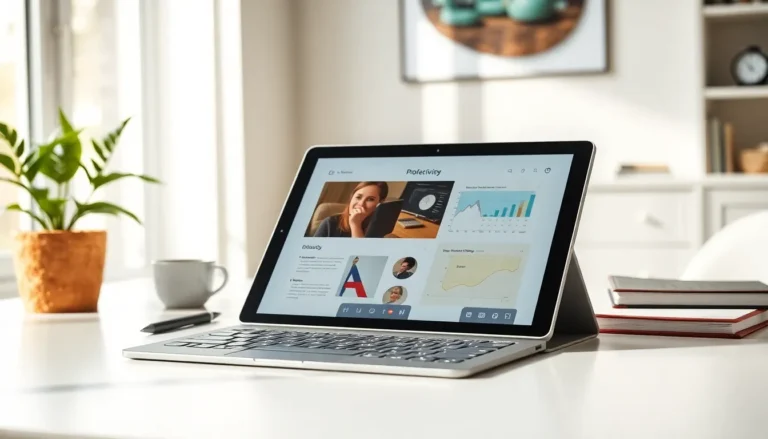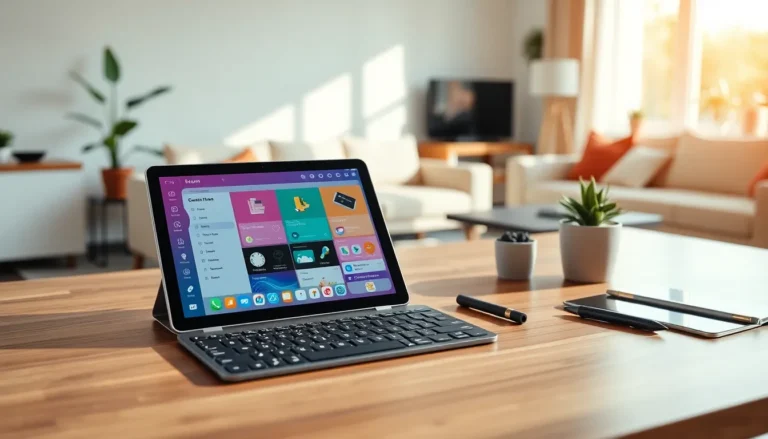
Tablet techniques can transform how users interact with their devices. Whether someone uses a tablet for work, entertainment, or creative projects, knowing the right methods makes a significant difference. Many people only scratch the surface of what their tablets can do. They swipe, tap, and scroll, but miss dozens of features hiding in plain sight.
This guide covers essential tablet techniques that help users work faster, create better, and extend their device’s lifespan. From gesture shortcuts to battery optimization, these practical tips apply to most modern tablets, including iPads, Android devices, and Windows tablets.
Table of Contents
ToggleKey Takeaways
- Mastering tablet techniques like multi-finger gestures and split-screen modes can significantly speed up your daily workflows.
- External keyboards and Bluetooth mice transform tablets into productivity machines capable of replacing laptops for many tasks.
- Stylus pressure and tilt sensitivity enable professional-level drawing and creative work when paired with apps like Procreate.
- Smart note-taking apps sync audio to handwriting and make notes searchable, offering advantages paper cannot match.
- Reduce screen brightness, enable dark mode on OLED displays, and limit background app activity to extend battery life.
- Keep your tablet’s storage at least 10-15% free and restart weekly to maintain optimal performance over time.
Mastering Touch Gestures and Navigation
Touch gestures form the foundation of tablet techniques. Most users know the basics, tap to select, swipe to scroll. But advanced gestures save hours of time over weeks and months of use.
Multi-Finger Gestures
Four-finger and five-finger gestures offer quick access to common actions. On iPads, a four-finger swipe left or right switches between open apps. A five-finger pinch returns users to the home screen instantly. Android tablets offer similar shortcuts through the settings menu.
Two-finger gestures handle zooming and rotating. Pinch to zoom works in photos, maps, and web browsers. Rotating two fingers turns images or documents, a useful trick many forget exists.
Split View and Multitasking
Modern tablets support split-screen modes. Users can drag an app from the dock to one side of the screen, then open a second app beside it. This technique proves invaluable for research, note-taking while watching videos, or comparing documents side by side.
Slide Over mode adds a floating app window that users can dismiss with a quick swipe. It’s perfect for checking messages without leaving the current task.
Text Selection Tricks
Selecting text on a tablet frustrates many users. Here’s a faster method: double-tap a word to select it, then drag the selection handles. Triple-tap selects an entire paragraph. On iPads, users can place the cursor precisely by holding the spacebar and dragging, this turns the keyboard into a trackpad.
These tablet techniques become second nature with practice. Users who invest time learning gestures report significantly faster workflows.
Optimizing Your Tablet for Productivity
A tablet can replace a laptop for many tasks, if users configure it properly. The right tablet techniques turn a casual device into a productivity machine.
Keyboard and Accessory Setup
External keyboards transform tablet typing speed. Bluetooth keyboards pair easily and support standard shortcuts like Ctrl+C and Ctrl+V. Many users don’t realize their tablet supports mouse input too. Connecting a Bluetooth mouse enables desktop-style precision.
The Apple Pencil and similar styluses add handwriting input. Users can write in text fields, and the tablet converts handwriting to typed text. This feature works surprisingly well for quick notes.
App Organization Strategies
Home screen organization matters more than users think. Grouping apps by function, communication, work, entertainment, reduces searching time. Most tablets support widgets that display information without opening apps. Calendar widgets, task lists, and weather displays keep essential data visible.
Folder usage varies by preference. Some users prefer one-tap access to frequent apps. Others prefer clean home screens with apps organized in folders. Both approaches work: consistency is key.
Cloud Integration
Cloud storage solves the limited storage problem many tablets face. Services like Google Drive, iCloud, and Dropbox sync files across devices automatically. Users can start a document on their tablet and finish it on a computer without manual transfers.
Cloud-based apps like Google Docs and Microsoft 365 save work continuously. This eliminates the risk of losing progress to crashes or battery failures.
Creative Techniques for Drawing and Note-Taking
Tablets excel at creative work. The combination of touch input, stylus support, and specialized apps opens possibilities that paper can’t match.
Stylus Pressure and Tilt
Premium styluses detect pressure and tilt angle. Light pressure creates thin lines: heavy pressure creates thick strokes. Tilting the stylus produces shading effects, mimicking real pencil techniques. Users should experiment with these inputs in their drawing apps.
Not all apps support every stylus feature. Procreate on iPad uses the full range of Apple Pencil capabilities. Autodesk Sketchbook offers similar support across platforms.
Layer-Based Drawing
Digital art apps use layers, transparent sheets stacked on top of each other. Artists can sketch on one layer, ink on another, and color on a third. This approach allows changes to one element without affecting others.
Beginners should start with three layers: background, main subject, and details. This simple structure prevents common mistakes while teaching the layer concept.
Smart Note-Taking Methods
Tablet techniques for note-taking go beyond writing. Users can record audio while taking notes. Apps like Notability sync audio to handwriting, so tapping a word plays back what was said at that moment.
PDF annotation saves printing costs. Users import documents, highlight key passages, add comments, and share marked-up versions. Students and professionals use this technique for textbooks, contracts, and research papers.
Searchable handwriting represents a major advantage over paper. Good note apps convert handwriting to searchable text. Users can find notes from months ago by typing a keyword.
Extending Battery Life and Performance
Battery anxiety affects many tablet users. Smart tablet techniques extend usage time and maintain device performance over years of ownership.
Display Settings
The screen consumes more power than any other component. Reducing brightness to the minimum comfortable level extends battery life significantly. Auto-brightness helps, but manual adjustment often works better in consistent lighting.
Dark mode reduces power consumption on OLED screens. The technology turns off pixels completely for black areas. Users with OLED tablets should enable dark mode for apps used frequently.
Background App Management
Apps running in the background drain battery slowly but constantly. Users should close apps they aren’t actively using. Both iOS and Android offer settings to limit background activity for specific apps.
Location services deserve special attention. Many apps request location access but don’t need continuous tracking. Changing permissions from “Always” to “While Using” preserves battery without breaking functionality.
Storage and Performance
Full storage slows tablets noticeably. Users should maintain at least 10-15% free space for optimal performance. Deleting unused apps, clearing cached data, and moving photos to cloud storage all help.
Restarting the tablet weekly clears temporary files and refreshes system processes. This simple habit prevents gradual slowdowns that accumulate over time.
Charging Best Practices
Modern lithium batteries prefer partial charges over full cycles. Keeping the battery between 20% and 80% extends its lifespan. Users shouldn’t stress about occasional full charges, but avoiding regular 0-100% cycles helps.